StudioLive XX.4.2 Ai - Universal Control Ai Console
StudioLive XX.4.2 Ai - Universal Control Ai Console
Universal Control Ai is an application that is found after registering your mixer with your Presonus User Account. You can understand where to find this driver on this link.
To know the computers and Operating Systems that can correctly run Universal Control Ai, click on this link here.
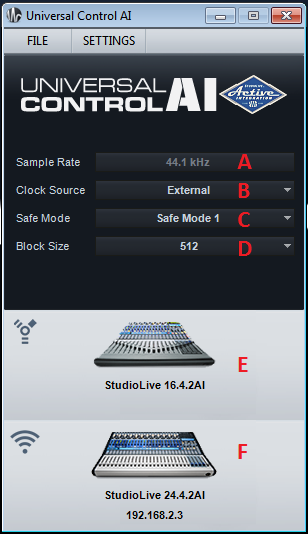
The Universal Control-AI Launch Window offers basic configuration tools for using your StudioLive AI mixer as an audio device on your computer:
A.) Sample Rate: Displays the sample rate set on the StudioLive Ai-series mixer.Because your mixer is always the master clock, the sample rate must be set in the System menu on your mixer. This is found under the System Menu >> Page 6
B.) Clock Source: Displays the master clock for the audio driver.
Power User Tip:As mentioned above, the StudioLive AI mixer is the master clock for your audio system. The audio driver is clocked externally by the mixer. This means that your mixer will not be forced to reclock (and mute its outputs) if your computer crashes or is accidentally disconnected.
C.) Safe Mode: Changes How the StudioLive Driver’s Buffer Size is Set.
Low Latency = Input and Output buffers are both identical to the Buffer Size settings.
Normal Mode = Slightly increases the output-buffer for typical operation.
Safe Mode 1-2 = Increases the output-buffer size for added stability.
D.) Block Size (Windows Only): Changes the StudioLive Buffer Size.
You can set the buffer size from 64 to 4,096 samples. The buffer size determines the roundtrip time it takes audio data to be converted from analog to digital and back to analog. As a general rule, the higher the buffer size, the better the system performance, but the less playable virtual instruments and the like become. In general, 512 samples (11 to 12 milliseconds) will provide you with a large enough buffer for optimum system performance, but low enough to be unobtrusive.
**You should set your buffer size prior to launching your host application.
***On Mac, the buffer size is set from inside your host application.
For more information on how digital latency works, click on this link here.
E.) Device Window (Firewire/option card connection):
When a StudioLive Ai mixer is connected via Firewire or one of the optional cards available (coming soon), you will see the designated icon for that connection.
Should you need to troubeshoot this connection, please see this link here.
F.) Device Window (Ethernet/Wireless connection):
This window will show when a StudioLive Ai is connecte via a wired or wireless network. The network information will show a "Wifi" icon denoting it is connected and can be viewed. IP address information can be found to identify itself on the network. To find out where to find your IP address on your StudioLive mixer, see the link below: